How does mesh Wi-Fi work? A mesh system replaces one big router with a small team of units called nodes. One node plugs into your modem. The others sit around your home and pass data to each other, so you get a strong signal in every room. All nodes share one network name and password, and your phone switches between them on its own as you move.
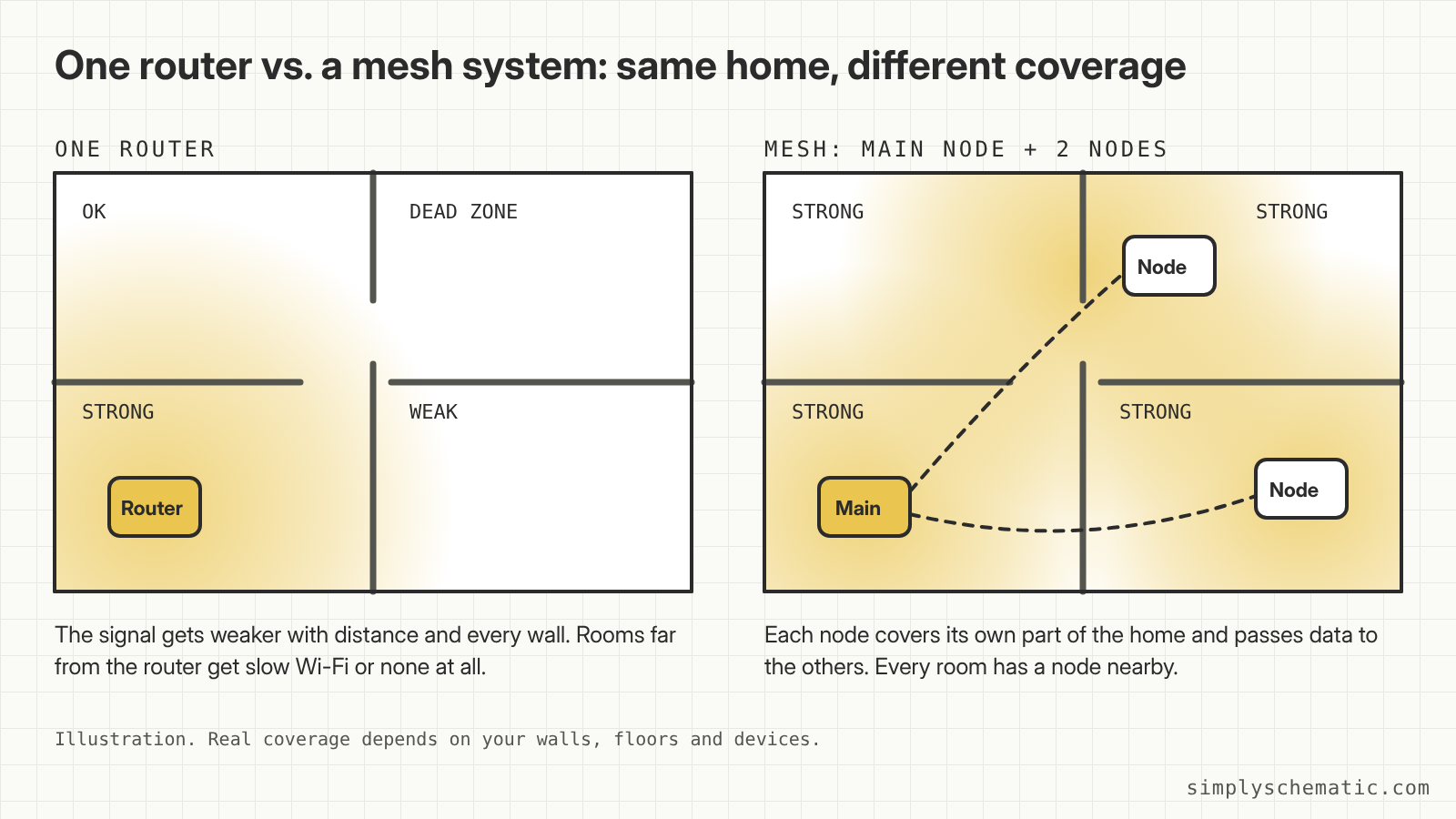
Here’s the easiest way to picture it. A regular router is one person shouting across the house. The farther you are, the harder it is to hear, and every wall makes it worse. A mesh system is a few people standing in different rooms, passing the message along. Nobody has to shout, and you always have someone close by.
What’s inside a mesh Wi-Fi system
A mesh system usually comes in a box of two or three identical-looking units. They don’t all do the same job:
- Main node. It plugs into your modem with a cable and works as the router. It hands out addresses to your devices and decides where data goes.
- Satellite nodes. You place them around the house. Each one creates Wi-Fi in its area and stays in touch with the main node.
- An app. Most systems are set up and managed from a phone app, not a web page full of settings.
The Wi-Fi Alliance, the group that certifies Wi-Fi devices, describes this setup in its EasyMesh standard as a controller that manages the network plus extra access points called agents. The controller coordinates the agents so they don’t get in each other’s way.
How does mesh Wi-Fi work, step by step
Say you’re watching a video on a laptop in the bedroom, far from the modem. Here’s the trip the video takes:
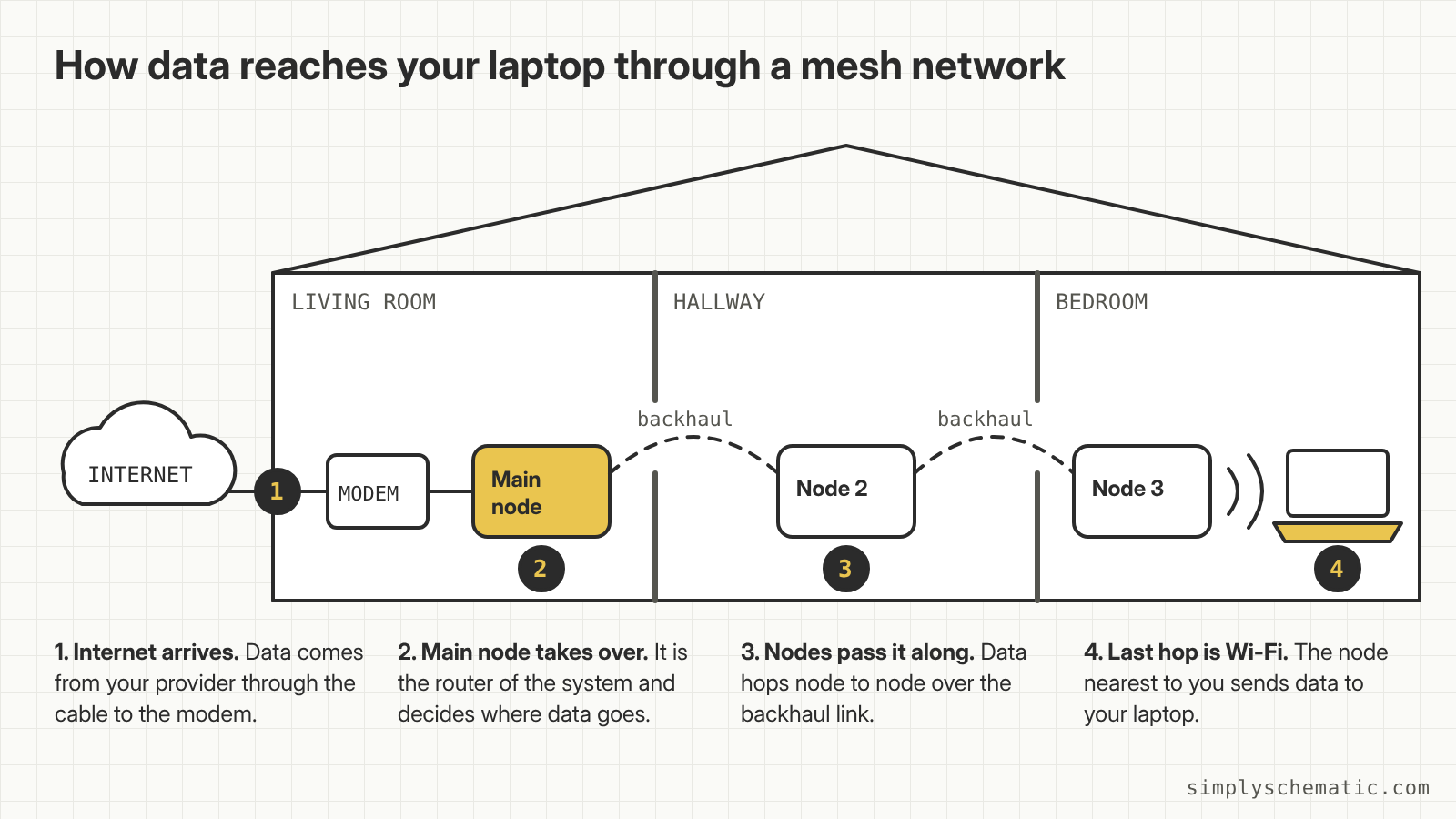
- The internet arrives. Data comes from your provider through the cable to your modem.
- The main node takes over. It gets the data from the modem and works out which node is closest to your laptop.
- Nodes pass it along. The data hops from node to node. This link between nodes is called the backhaul.
- The last hop is regular Wi-Fi. The node in the bedroom sends the data to your laptop. Your replies travel back the same way.
So your laptop only has to reach the node in the same room. The long trip across the house is done by the nodes, which sit in better spots and are made for exactly this job.
Backhaul: the hidden road between nodes
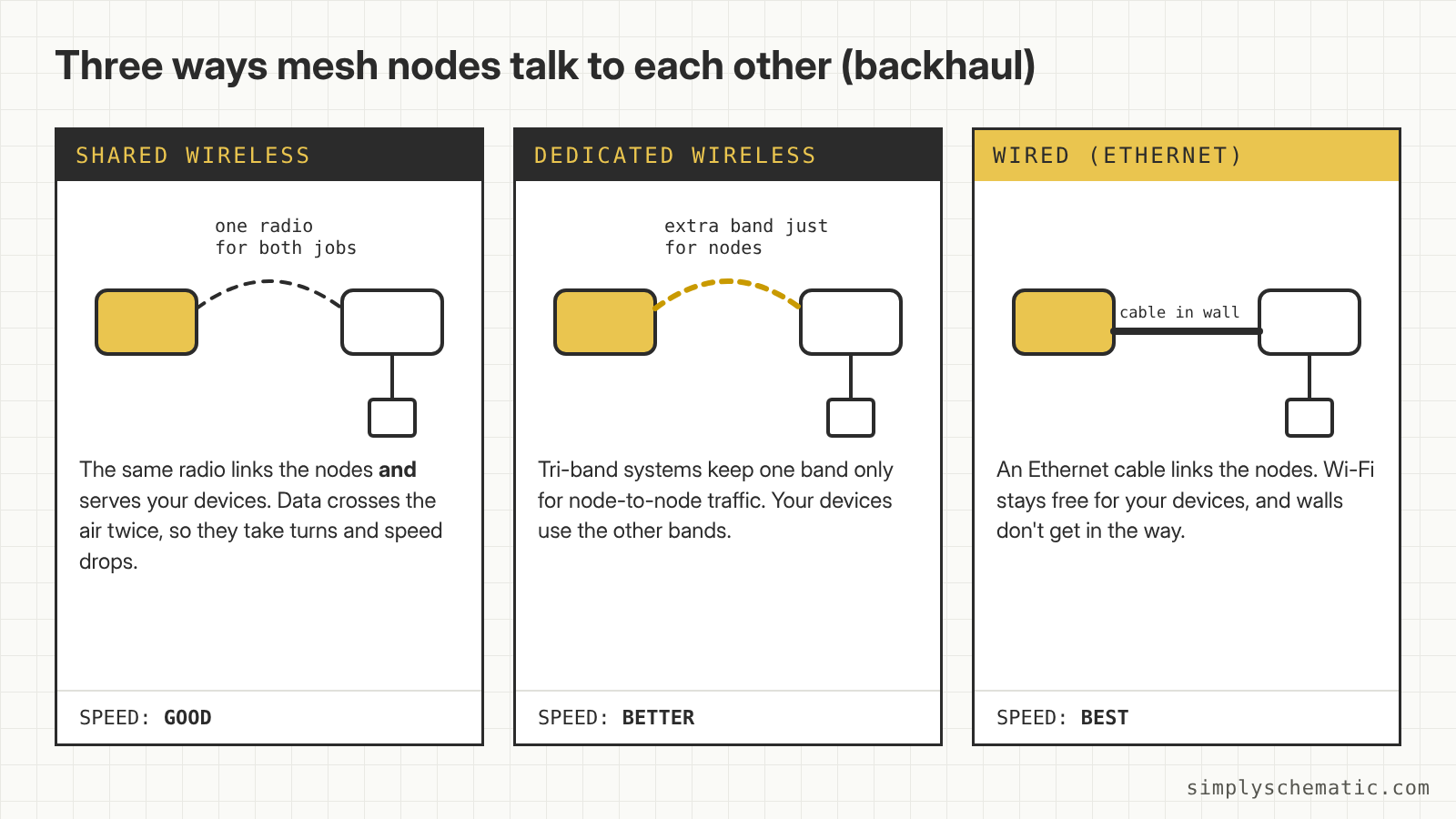
How fast your mesh feels depends a lot on the backhaul. There are three common types:
| Backhaul type | How it works | Good to know |
|---|---|---|
| Shared wireless | The same radio connects the nodes and your devices | Each piece of data crosses the air twice, so speed drops at far nodes |
| Dedicated wireless | A separate radio band is reserved for node-to-node traffic | Found on tri-band systems; usually faster than shared |
| Wired (Ethernet) | A cable connects the nodes | Fastest and most stable; needs Ethernet in your walls or along the floor |
Why does shared backhaul lose speed? Think of one narrow road used by two buses. The node first receives your data from the main node, then sends it again to your laptop, on the same radio. The two transfers take turns, so each one gets only part of the time.
How your phone switches between nodes
Every node broadcasts the same network name and accepts the same password. So when you walk from the living room to the bedroom, you don’t pick a new network. Your phone moves to the closer node on its own. This is called roaming.
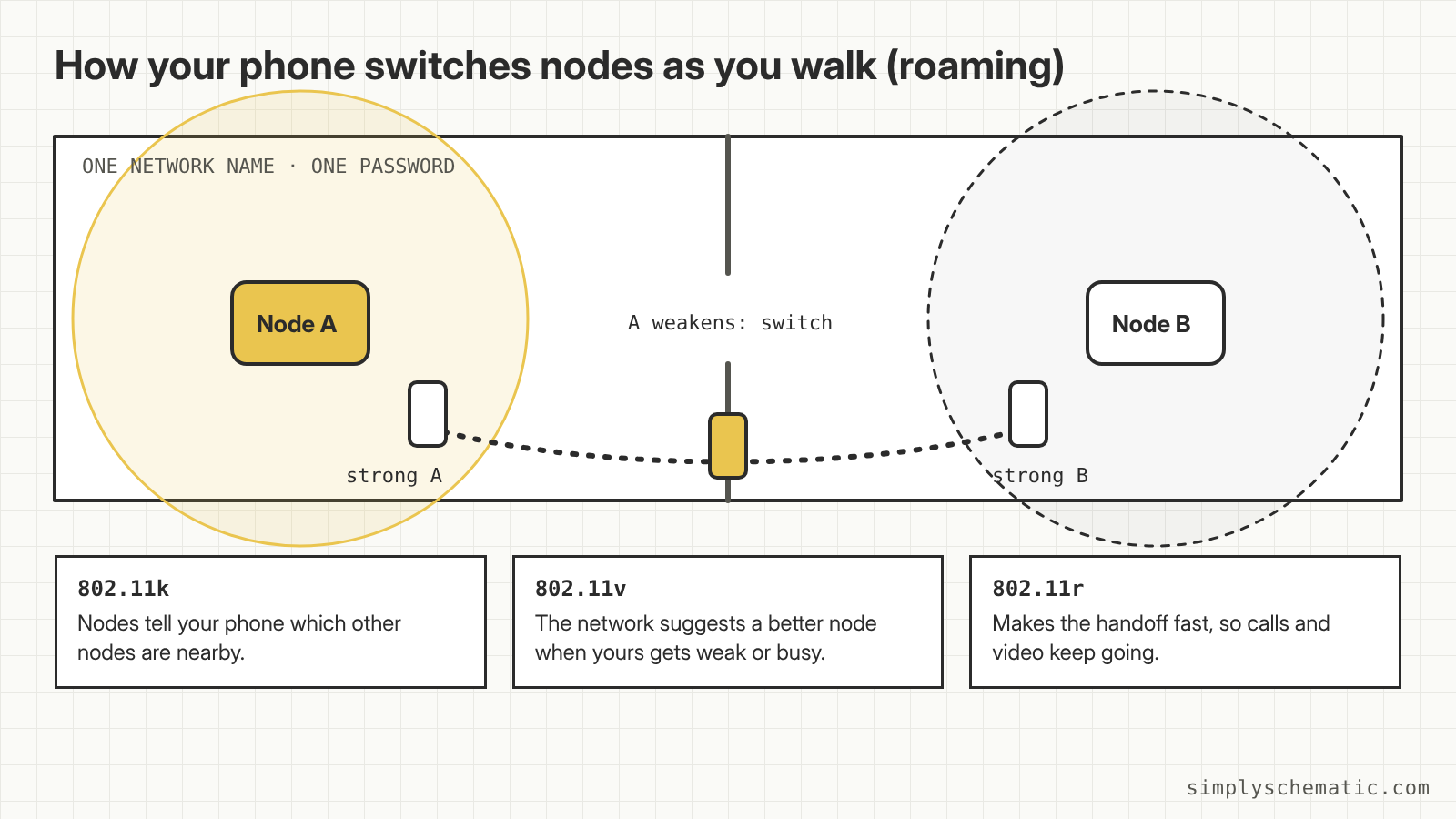
Three Wi-Fi standards make the switch smoother. The Wi-Fi Alliance groups them under Wi-Fi Agile Multiband:
- 802.11k lets the network and your phone share what’s nearby, like a list of other nodes.
- 802.11v lets the network suggest a better node when yours gets weak or crowded.
- 802.11r speeds up the handoff itself, so a video call doesn’t freeze.
Not every device supports all three. An older phone may “stick” to a far node for a while before it switches. Turning Wi-Fi off and on usually fixes that.
Mesh vs. a single router vs. an extender
| Single router | Wi-Fi extender | Mesh system | |
|---|---|---|---|
| How many devices | One | Router + extender | Two or more nodes |
| Network name | One | Often a second name | One for the whole home |
| Switching between units | Not needed | Often manual or slow | Automatic |
| Best for | Small homes | One dead zone | Larger homes and several floors |
Where to put mesh nodes
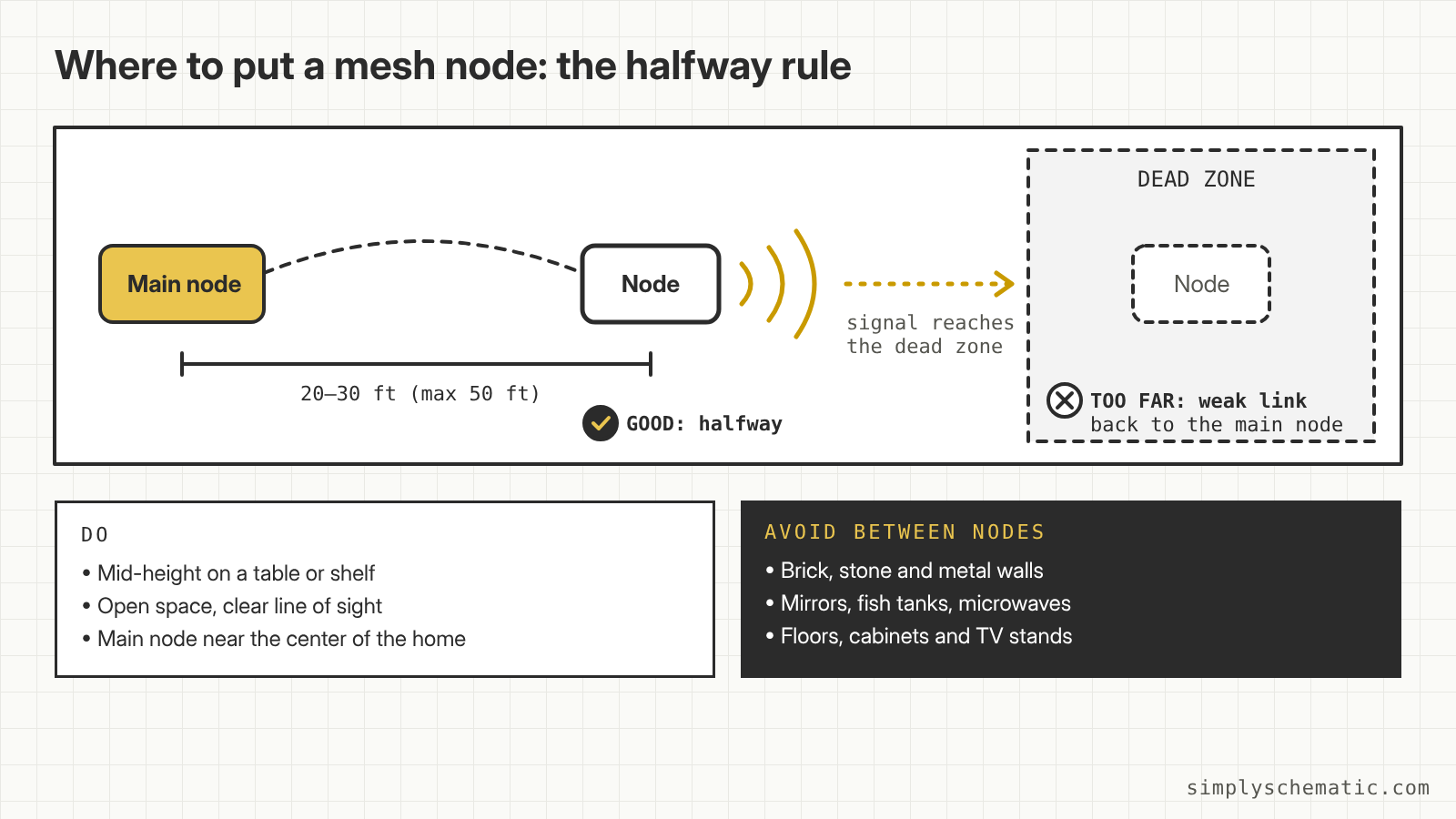
How many nodes you need depends on the size of your home, its layout, the number of floors and what the walls are made of. Placement matters as much as the count. These tips come from eero’s placement guide and work for most mesh systems:
- Put each node about halfway between the main node and the dead zone, not inside the dead zone.
- Keep nodes about 20 to 30 feet apart, and no more than 50 feet.
- Place them at mid-height on an open surface, not on the floor or inside a cabinet.
- Avoid brick, stone and metal walls, mirrors, fish tanks and microwaves between nodes.
- If you can, move the modem and main node to the center of your home.
Quick questions
Does mesh Wi-Fi make my internet faster?
Not beyond what you pay for. Mesh can’t turn a 300 Mbps plan into 500 Mbps. What it does is bring the speed you already have to the rooms where Wi-Fi used to be weak.
Does every node need to be plugged in?
Every node needs a power outlet. Only the main node has to be connected to the modem with a cable. The other nodes can work without cables, unless you choose wired backhaul.
Can I use mesh with my internet provider’s router?
Usually, yes. You plug the main node into the provider’s box. If that box is also a router, you end up with two routers in a row. Many mesh apps have a bridge mode for this. You can also ask your provider to put their box in modem-only mode.
- Small apartment, router in the middle? One good router is usually enough.
- Large home, several floors, dead zones? Mesh is worth it.
- Ethernet in the walls? Connect the nodes with cables for the best speed.
- No cables? Look for a tri-band system with a dedicated backhaul band.